
Day-to-day work
Quote templates: multiple quote layouts you can pick from
Build more than one quote PDF layout for your business: a cover page, a personal cover letter, an image gallery of past work, pricing, terms and payment details, and choose which one (and which sections) to include each time you download a quote.
This is for native estimates (the spreadsheet-style Estimate tab), the same as the plain Quote PDF feature it builds on. If your deals are estimated in Buildxact, keep using Buildxact's own quote PDFs.
If you don't see "Quote templates" in Settings or a template picker on Download PDF, an administrator hasn't turned this feature on yet; the plain Download PDF button keeps working exactly as before.
Which plan includes it
Quote templates is included on the Crew and Company plans. On the Solo plan you won't see "Quote templates" in Settings or a template picker on Download PDF. The plain Quote PDF (one layout, your branding, Download PDF in a single click) keeps working exactly as it does today. An owner can upgrade any time under Settings → Billing to unlock multiple named templates.
Setting up your templates
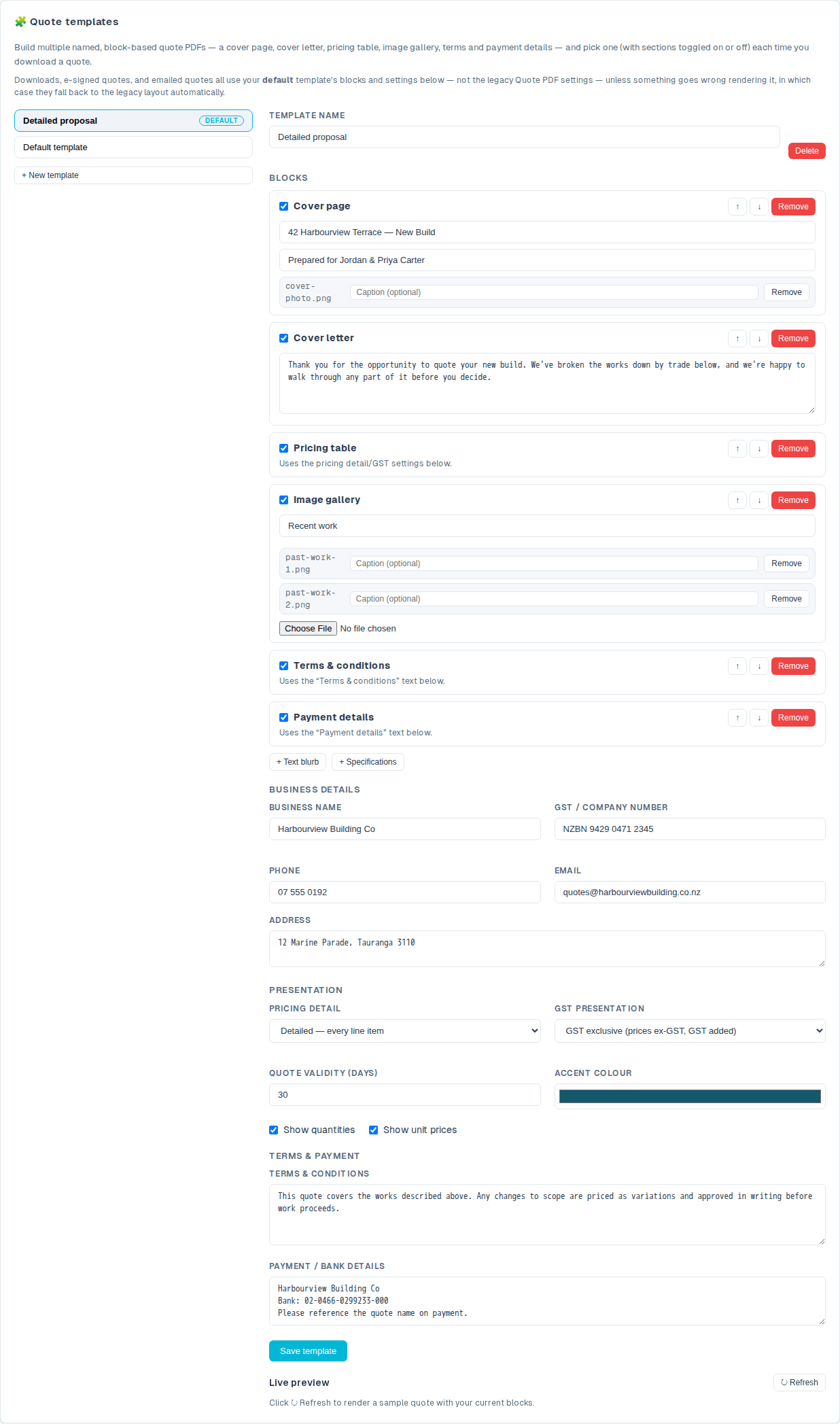
Go to Settings → Estimates & quotes → Quote templates (owner access). The first time you open it, your existing Quote PDF branding and settings are copied into a starting Default template automatically; nothing about your current quotes changes until you edit it.
- Pick a template from the list on the left, or click + New template and give it a name to start a fresh one. If you've made changes you haven't saved yet, switching templates (or starting a new one) asks you to confirm before discarding them. An Unsaved changes note appears next to the template name whenever this applies. Leaving the page by a link or your browser's Back button asks the same way: Stay here keeps your edits.
- Give it a name.
- Build it out of blocks: tick a block on to include it, and use the ↑/↓ buttons to reorder them:
- Cover page: a title, subtitle and a full-page photo, always its own first page ahead of the rest of the quote. Leave the title blank and none is shown; it doesn't fall back to the estimate's internal name. - Cover letter: a personal note to the client. - Text section: any other free-text section with its own heading. You can add as many of these as you like. - Pricing table: the priced works, grouped by category (uses the pricing detail and GST settings below). - Image gallery: a set of photos, e.g. past work or inspiration shots, each with its own optional caption. You can add more than one: one for past work, one for the materials you're proposing, and so on. - Specifications: your written line-item specifications, with tick boxes for whether to include the intro paragraph and the photos. - Terms & conditions and Payment details: your standard text blocks.
Open Section options for the Start on a new page tick box, for when a section should begin at the top of a fresh page rather than run on from the one above. If it's the first section of the quote it's simply ignored, so you never end up with a near-empty first page.
- For a Cover page or Image gallery block, upload a PNG or JPEG photo underneath it, and add a caption if you like, but save the template first if you've just added the block; a brand-new block needs to be saved before you can attach an image to it.
- Fill in the business details, pricing presentation, accent colour, and terms/payment text for this template; each template can look and read differently.
- Watch the live preview on the right: it re-renders a sample quote by itself a moment after you stop typing, so you never have to remember to refresh it. Click Save template when the preview looks right.
On smaller screens, switch between Edit template and Preview quote; your writing stays in place. The sample includes specifications and an example plan image so you can see the effect of the intro and image switches.
How much pricing detail to show
Under Presentation, Pricing detail offers four ready-made choices:
| Choice | What the client sees | | --- | --- | | Detailed | Every line item with quantities, unit prices, amounts, a subtotal per category, and the total. | | Itemised scope | Every line item by name, with no per-line prices, just one total at the bottom. | | Category subtotals only | One figure per category, no individual lines. | | Lump sum | A short scope paragraph and the total, nothing else. |
Underneath are the six tick boxes those choices are built from: show line items, show each line's amount, show quantities, show unit prices, show category subtotals, show the quote total. Change any of them and the choice above reads Custom…, which just means "a combination of your own". That's how you get a layout none of the four presets cover, such as a detailed breakdown with no category subtotals, or a scope document with no prices at all (turn off the quote total too). Quantity, unit-price and line-amount controls become available when individual line items are shown.
Existing templates keep rendering exactly as they always have until you change something here.
Reusing the same paragraphs: saved text
Most builders write the same few paragraphs over and over: the standard scope note, the warm opening letter, the "what we need from you before we start" list. Open the Saved text library below the sections to find or create these paragraphs.
- Click New saved text, enter a name, choose cover letters or text sections, write the text and click Create saved text.
- Choose it from a section's Text source dropdown. The section shows the actual shared text, and Edit shared text opens its library entry.
- Rename or edit an entry and click Save text. Entries save separately from the template; unsaved writing is marked and stays intact when another entry is created or deleted. A failed save keeps your draft ready to retry.
A section uses the entry's current saved text: saving a correction updates every template that uses it and future quotes rendered from them. The live preview refreshes after saving or deleting shared text. Open Recovery text to inspect the section's backup wording. If its shared entry is deleted, the section uses this recovery text and offers Use custom text to make it editable. When shared text is available, that same action copies its current wording into the section for independent editing.
One template is always marked Default: the one used to email a quote, e-sign a quote, and preselected when you download one. Use Set as default on any other template to switch it; if you delete the current default, another template is automatically promoted so there's always one set.
Your logo, business name and accent colour always reflect your current Branding settings (or Quote PDF settings, if you haven't set up Branding) at the moment a quote actually goes out (downloaded, emailed, or sent for e-signing), even if a template's own copy of those fields is older. The fields in each template's editor drive its live preview and what a brand-new template starts from; to change your business's actual identity, use Settings → Branding & email (or Quote PDF).
Where templates are used
Your default template (with its own blocks and settings) is used automatically whenever a quote goes out: downloading, e-signing, and emailing all use it, *unless* that estimate has a template remembered against it (see Remembering a template for one estimate below), in which case the remembered one wins on all three. If something goes wrong rendering either, the quote falls back to your plain Quote PDF settings instead of failing outright, so a quote can always go out.
Downloading with a template
- Open a deal's Estimate tab and pick the estimate you want to quote.
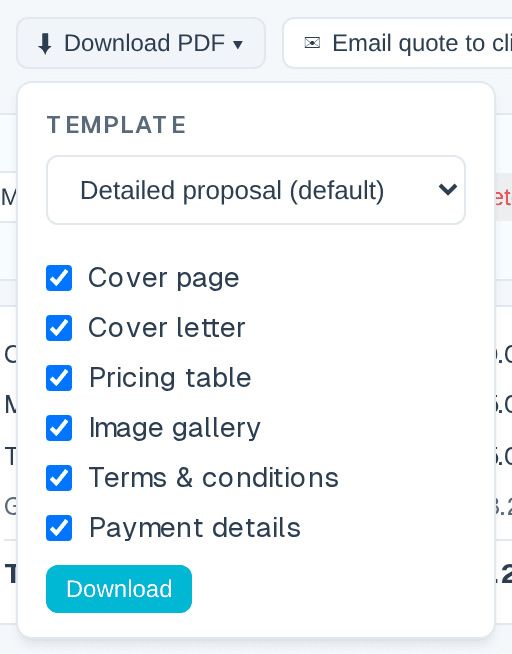
- Click ⬇ Download PDF ▾: a small panel opens instead of downloading immediately.
- Choose which template to use.
- Untick any section you don't want in *this* download (e.g. skip the cover letter for a repeat client). You can only turn sections off here, not turn on a section the template itself has switched off.
- For a Cover letter or Text section, you can also swap in different saved text for this one download, handy when the job needs your "renovation" scope note instead of your usual "new build" one, without editing the template. Leave it on Template default to use whatever the template itself says. The swap applies only to the file you're about to produce; it doesn't change the template, and it doesn't change what gets emailed later.
- Optional: click 👁 Preview first to see the finished quote (this deal's real client, works and prices, with your template and section choices applied) before you commit a file to your computer. The preview updates by itself as you change the template or tick sections. It's exactly the document the Download button produces.
- Click Download to get your PDF. The button is briefly disabled while your chosen template's sections load, and if they fail to load it falls back to your plain Quote PDF automatically.
Remembering a template for one estimate
Some jobs want a different look from your usual default: a premium proposal for a big build, a plain one for a small repair. Tick Remember this template for this estimate in the download panel and your choice sticks to *that estimate*:
- Next time you open the download panel for it, that template is already selected.
- The emailed quote and the e-signature request use it too, so the client never receives a different-looking document than the one you downloaded and checked.
Untick the box (and download again) to go back to following your business default. If someone later deletes the remembered template, the estimate quietly falls back to your default; nothing breaks and nothing needs fixing.
Tips
- A block with no content (an empty cover letter, an empty gallery) simply doesn't appear in the PDF; you don't need to remove it, just leave it unticked.
- The Specifications block folds in your written line-item specifications (see Line-item specifications), a price-free intro plus each flagged item's description and photos, grouped by category, when that feature is enabled. It's empty (and safe to leave ticked off) until you've flagged and written up at least one item.
- Templates are per business: every staff member downloading a quote sees the same set.
- Duplicate copies the template you're looking at, every block, all its settings and branding, and its photos, into a new one called "<name> (copy)". It's the quickest way to make a variant: duplicate your standard layout, then change the one section that differs. The copy is fully independent, so editing or deleting either one leaves the other alone. It copies what's saved, so save your edits first; you'll be asked to confirm if you have unsaved changes.
- Deleting a template asks you to confirm first, naming how many images will be deleted along with it; this can't be undone. Any estimate that was remembering it simply goes back to your default template.
- If a preview can't be rendered, you'll see a short message and a ↻ Retry button rather than an empty frame, and the last good preview stays on screen.